Table of Contents
PROBLEM
What happens to ATP configurations when upgrading to ESG 5.6?
SOLUTION
During the upgrade to Esg version 5.6, a migration report is generated. This report, is accessible to admins and contains all the ATP (Account Takeover Protection) legacy configurations, and should be used as a reference for the migration of those not covered by automatic quotas.
During the upgrade to ESG 5.6, access control policies, as well as groups and their members, are automatically migrated.
After the upgrade, the ATP module’s status depends on your existing access control policies: it will remain enabled if policies were already configured, or stay disabled if no policies were set up. In either case, the administrator should review and configure the module as needed.
Migration for outbound policies
The upgrade introduces an automated system for outgoing mail, which classifies members into quota levels based on their traffic volume. Quota levels are configurable in the Quota tab, and are relay based.
- Default configuration: Senders are automatically assigned to the appropriate quota level, with their quotas dynamically adjusted according to their traffic.
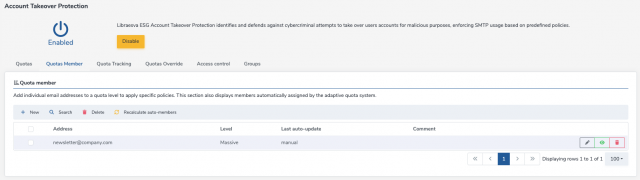
- Exception configuration: Senders such as newsletters, informational emails, or manual exceptions require manual migration. These must be associated with a quota level in the Quotas Member section.
Example:
A company sends a weekly newsletter to 10,000 recipients. Since this involves a custom traffic pattern and high volume, an exception must be created. For example, the admin could:
- Set the massive quota level to 10,000 messages.
- Assign the newsletter’s sender address (newsletter@company.com) in the Quotas Member tab.
Migration of other policies
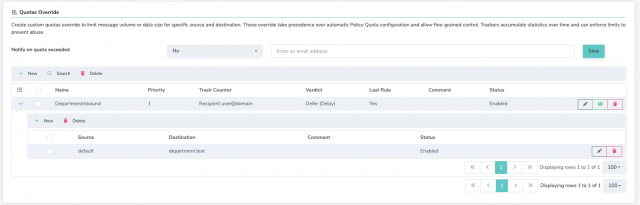
For policies not covered by the automatic system (e.g. inbound policies or custom one), migration must be performed using the Quotas Override section, referencing the legacy configuration from the migration report. The Quotas Override interface allows you to:
- Define a new quota with a priority level (lower priority = higher precedence).
- Set a tracker, time period for the quota, and limits (e.g. message count, message size).
- Specify the verdict (e.g. defer, reject, delete).
- Mark the rule as last or not. (e.g. there won’t be other policies applied)
In the context of quotas override, the admin can specify source and destination to which the quota applies (it could also use groups).
Examples:
A department receives high volumes of large attachments. A quota override is created to allow 50MB per hour during business hours for all recipients.
Final Steps
After all configurations are migrated, the administrator should:
- Enable the Policy Quota Module (if it was previously disabled)
- Enable Automatic Quotas.
- Apply all pending changes.
The system will automatically generate configurations for all previously unmanaged members.
Note: The Automatic Quota feature requires at least 14 days of message history to populate members accurately (E.g It will not populate quota members on newly created appliances)